Spritix Export Formats: Sprite Sheet, GIF, Atlas JSON, and PNG Frames
A practical guide to what each Spritix download contains, where frame order and timing are stored, and which files to use in a game project.
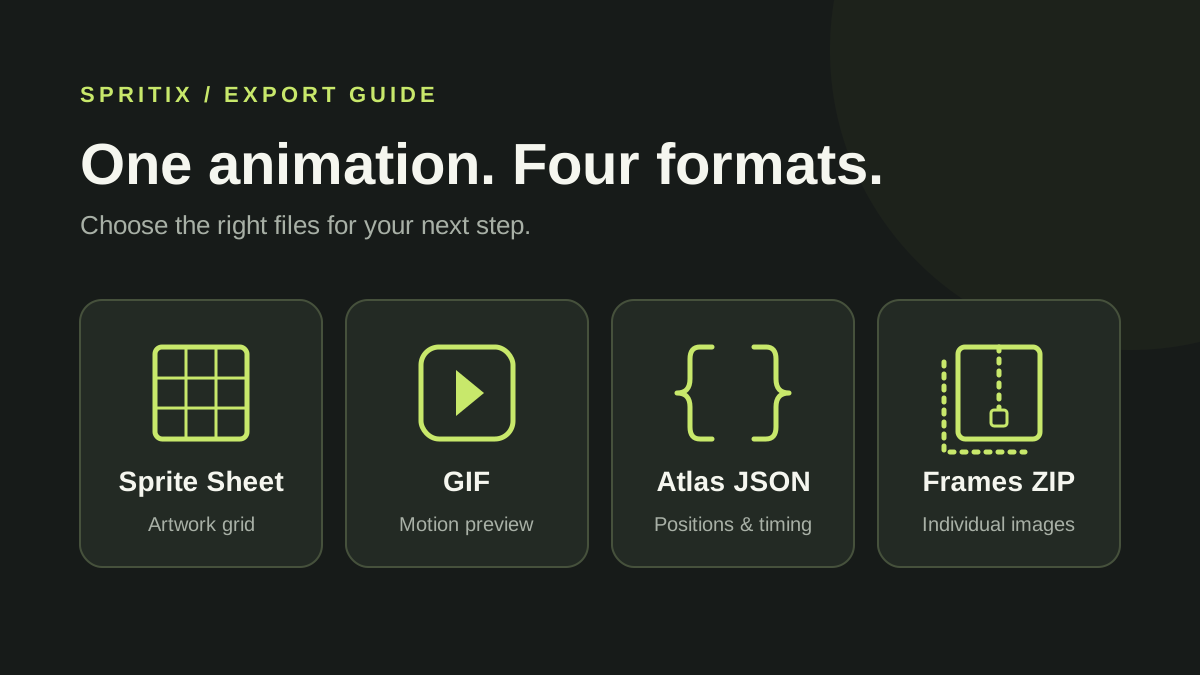
Spritix can download the same animation in four forms. A Sprite Sheet puts all frames in one PNG, a GIF plays a quick preview, Atlas JSON records frame positions and timing, and PNG Frames ZIP keeps every frame as a separate image. The right choice depends on how your game or editor loads animation files.
For your first engine import, download a Sprite Sheet and its matching Atlas JSON. The PNG contains the artwork; the JSON lets you check the frame dimensions and timing even if your engine does not read that JSON format directly. Follow the Godot tutorial for a complete grid-slicing example.
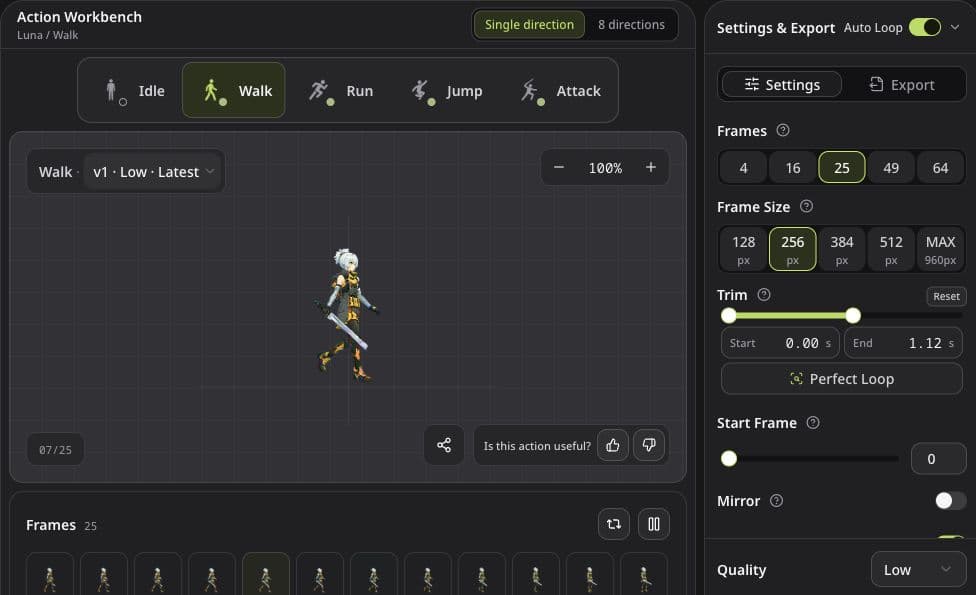
Finish any loop edits, apply your trim, and wait for settings to save before downloading.
Need animation frames first? The sprite sheet maker shows real outputs, export specifications, and a character-image or text entry into Studio. Generation credits and production download access apply in Studio.
Single-direction files at a glance
Open Settings & Export, then select the Export tab. Scroll within the panel if the last download button is below the fold.
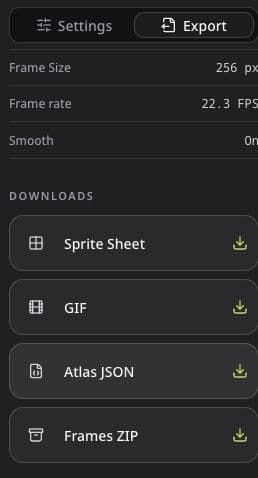
| Button | What you get | When to use it |
|---|---|---|
| Sprite Sheet | One PNG with all animation frames in a grid | Importing the artwork into a game engine |
| GIF | A playable animation preview | Reviewing motion or sharing a quick preview |
| Atlas JSON | A text file describing frame positions and timing | Checking export settings or building a custom importer |
| Frames ZIP | A ZIP containing a separate PNG for each frame | Editing individual frames or importing them separately |
A frame is one still image in the animation. FPS means frames per second: a higher rate plays the same frames more quickly.
Why a Sprite Sheet cannot play by itself
The W3C PNG specification defines a lossless image format with color and optional transparency. In a Spritix Sprite Sheet, the frames sit in separate rectangles inside one static PNG. The image itself does not say that frame_006 follows frame_005, how long either frame should appear, or whether the sheet contains Walk or Run.
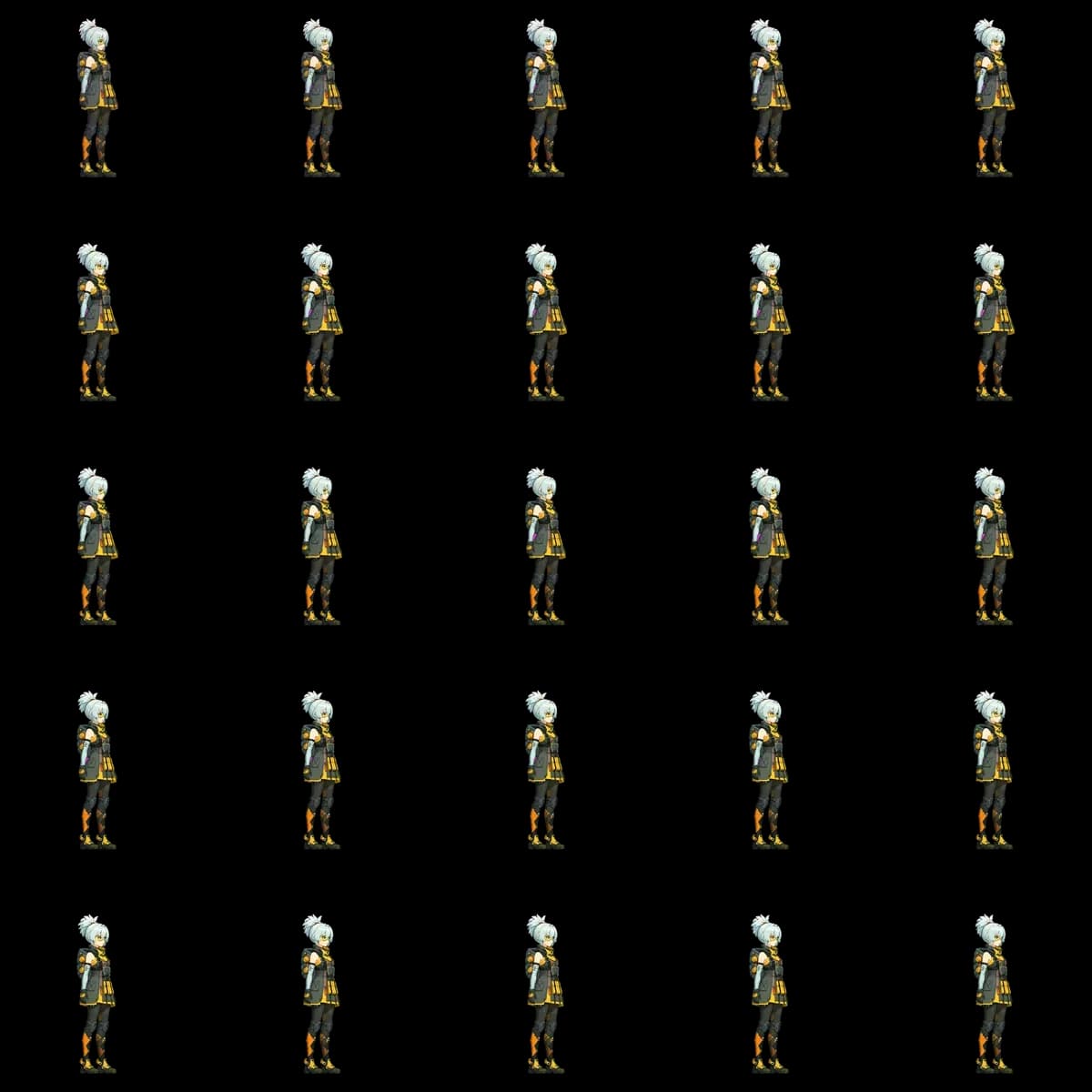
Current selectable frame counts are 4, 16, 25, 49, and 64. They form 2×2, 4×4, 5×5, 7×7, and 8×8 square grids. Every cell in a sheet has the same width and height.
A 25-frame sheet with 256 px cells is 1280 × 1280 px: five columns and five rows. Read it left to right across the first row, then continue on the next row. Frame Size includes the transparent space around the character.
Atlas JSON stores frame positions and timing
For custom importers: Atlas JSON example
The current single-direction Atlas format uses version 1. Every frame entry includes a zero-padded filename, its rectangle in the Sprite Sheet, and its duration in milliseconds. The meta block records the action, companion image, full texture size, frame size, and effective frames per second.
{
  "frames": [
    {
      "filename": "frame_000.png",
      "frame": { "x": 0, "y": 0, "w": 256, "h": 256 },
      "durationMs": 40
    },
    {
      "filename": "frame_001.png",
      "frame": { "x": 256, "y": 0, "w": 256, "h": 256 },
      "durationMs": 40
    }
  ],
  "meta": {
    "app": "Spritix",
    "version": 1,
    "action": "walk",
    "image": "character-walk.png",
    "size": { "w": 1280, "h": 1280 },
    "frameWidth": 256,
    "frameHeight": 256,
    "fps": 25
  }
}
This shortened example comes from a 25-frame export with 256-pixel cells at 1× scale; the downloaded file contains all 25 entries. Coordinates run left to right, then top to bottom.
Atlas JSON is not a universal format. The PixiJS Spritesheet API, for example, also uses frame rectangles and animation lists, but it expects its own JSON shape. A Sprite Sheet PNG can be loaded as an image in game engines, but you still need to configure its grid, frame order, and animation timing. Atlas JSON uses the Spritix shape above, so code that reads it may need a small conversion step.
GIF is for quick previews
Use GIF to check motion quickly in a browser or message. Use PNG artwork for your game: it preserves a wider range of colors and supports partially transparent pixels, which help keep soft edges smooth. GIF uses a limited palette and a simpler form of transparency, so its edges and colors may differ from the PNG files. These limits are described in the GIF89a specification.
PNG Frames ZIP is useful for frame-by-frame editing
Frames ZIP contains frame_000.png, frame_001.png, and so on in the same order used by the Sprite Sheet and GIF. It is useful when an editor or importer needs separate images. The ZIP does not include durationMs, so keep the Atlas JSON with it if your project needs exact timing.
Eight-direction downloads arrive as ZIPs
In 8 directions mode, the same four export buttons each produce a ZIP. You do not need to join the views into one large sheet yourself.
| Export button | Inside the ZIP |
|---|---|
| Sprite Sheet | One PNG for each available direction |
| GIF | One preview GIF for each available direction |
| Atlas JSON | One JSON describing the available directions and matching sheet filenames |
| Frames ZIP | Individual PNG frames grouped in folders by direction |
Wait for the generation batch to end. A batch with some failed directions can still export its successful views. Check the actual directions included rather than assuming every ZIP contains all eight.
The direction order is N, NE, E, SE, S, SW, W, NW, with unavailable views omitted. Mirrored directions are already flipped in the exported pixels; do not flip them again in your engine. See the direction preparation guide for the source-to-mirror relationships.
Directional Atlas JSON differs from the single-direction example above. New results use version 3, with each animation's speed and cycle duration recorded separately; some older results use version 2. Use the timing for the chosen animation rather than assuming every direction has one shared frame rate. Atlas JSON and the Sprite Sheet ZIP are separate downloads, so keep them together.
Match playback speed in your engine
For a single-direction export, check Frame rate in the Export tab and enter that FPS in your engine. You can also find it as meta.fps in the matching Atlas JSON. This assumes each frame plays for the same duration. If you implement per-frame timing, use durationMs. The exported values already account for your applied Speed and Trim; do not multiply the speed a second time.
A static PNG has no playback timing. If you only keep the sheet, record the intended FPS separately. A sheet with 25 frames at 10 FPS takes 2.5 seconds to play once; the same sheet at 25 FPS takes one second.
Decide whether the engine should repeat the action. Idle or Walk usually loops; Jump or Attack may play once and return to another state. The action name alone does not configure that behavior for you.
Downloads and plan limits
Free accounts can unlock production downloads for two saved animation versions per calendar month (UTC). Once a version is unlocked, downloading another format from it does not use another slot. A new generated version needs its own unlock. A subscription removes that monthly limit on the number of versions you can download; current plans also explain advanced frame and size options.
Publishing a share link or saving its branded display GIF is separate from these production files and does not consume the production-download allowance.
Which format should you use?
- Choose Sprite Sheet + Atlas JSON when your game loads one texture and needs exact frame positions and timing.
- Choose PNG Frames ZIP + Atlas JSON when you want to edit or repack individual frames without losing their order and timing.
- Choose GIF for review and sharing, not as the source for transparent game artwork.
- Keep files from the same export together. If you change the frame count, frame size, crop range, background processing, speed, or start frame, download the related files again.
When checking the artwork, open the PNG files. When your code needs frame positions and timing, read the Atlas JSON or use importer settings you have already tested.
Ready to test the files? Import a sprite sheet into Godot. To create another action from the same character, return to the complete workflow.
Author
Categories
More Posts
Prepare a Character for Single or Eight-Direction Animation
Create a character from an image or description, review the reference, and prepare consistent facing directions for your game.

Luna Animation Case Study: One Character, Five Actions
A review of one Luna source image and five actual Spritix outputs, including what stayed consistent, what changed, and which generation details were not recorded.
Refine Animation Loops Without Starting Over
Learn when to trim, change speed, use Perfect Loop, or generate a new version, with clear limits for each control.