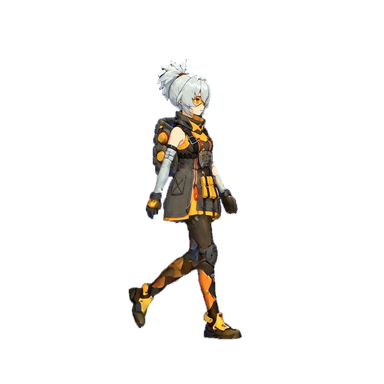
Unity sprite sheet slicing
Set Sprite Mode to Multiple, then slice by cell size or count.
Read the guideCreate 2D character animations from images or text with our sprite sheet generator.
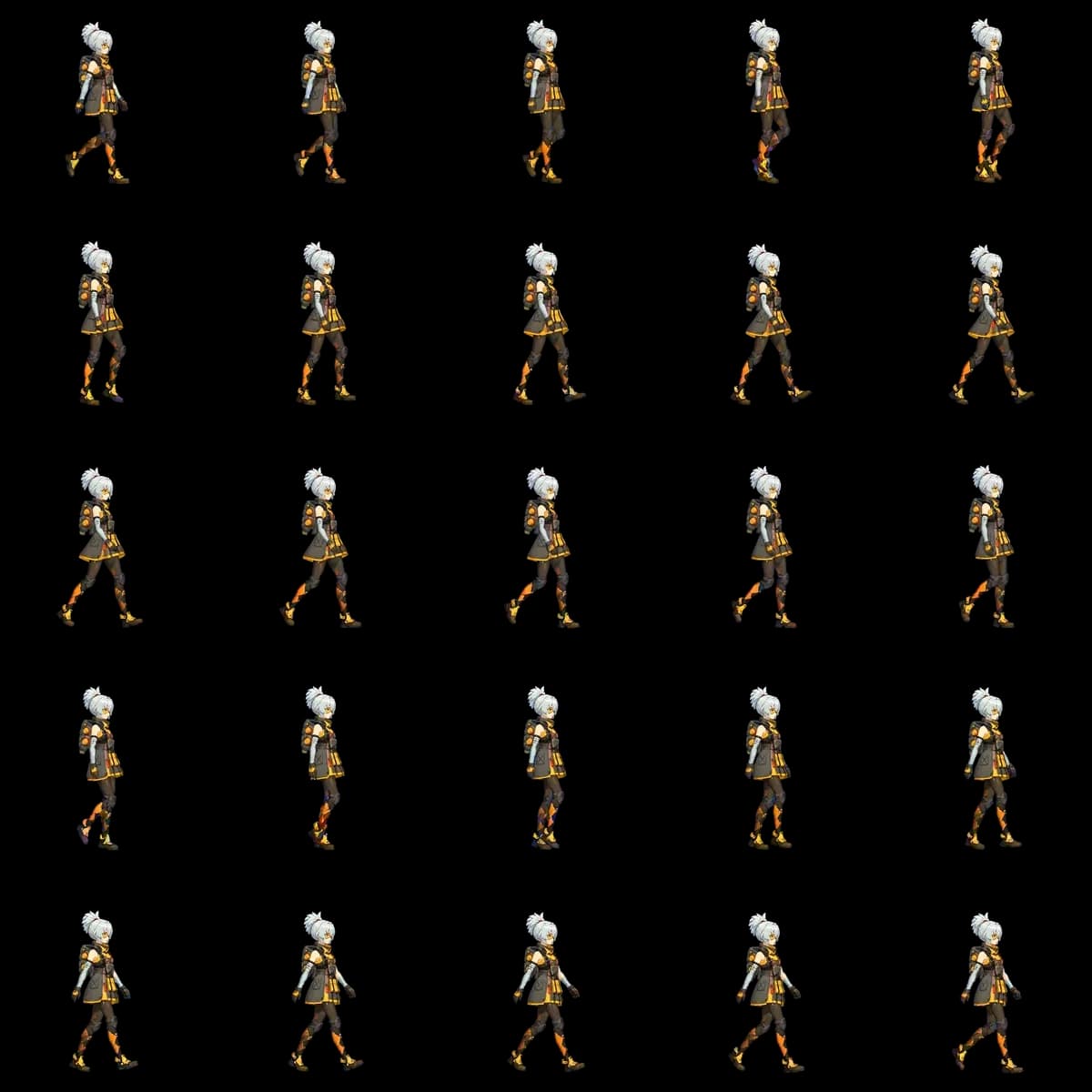
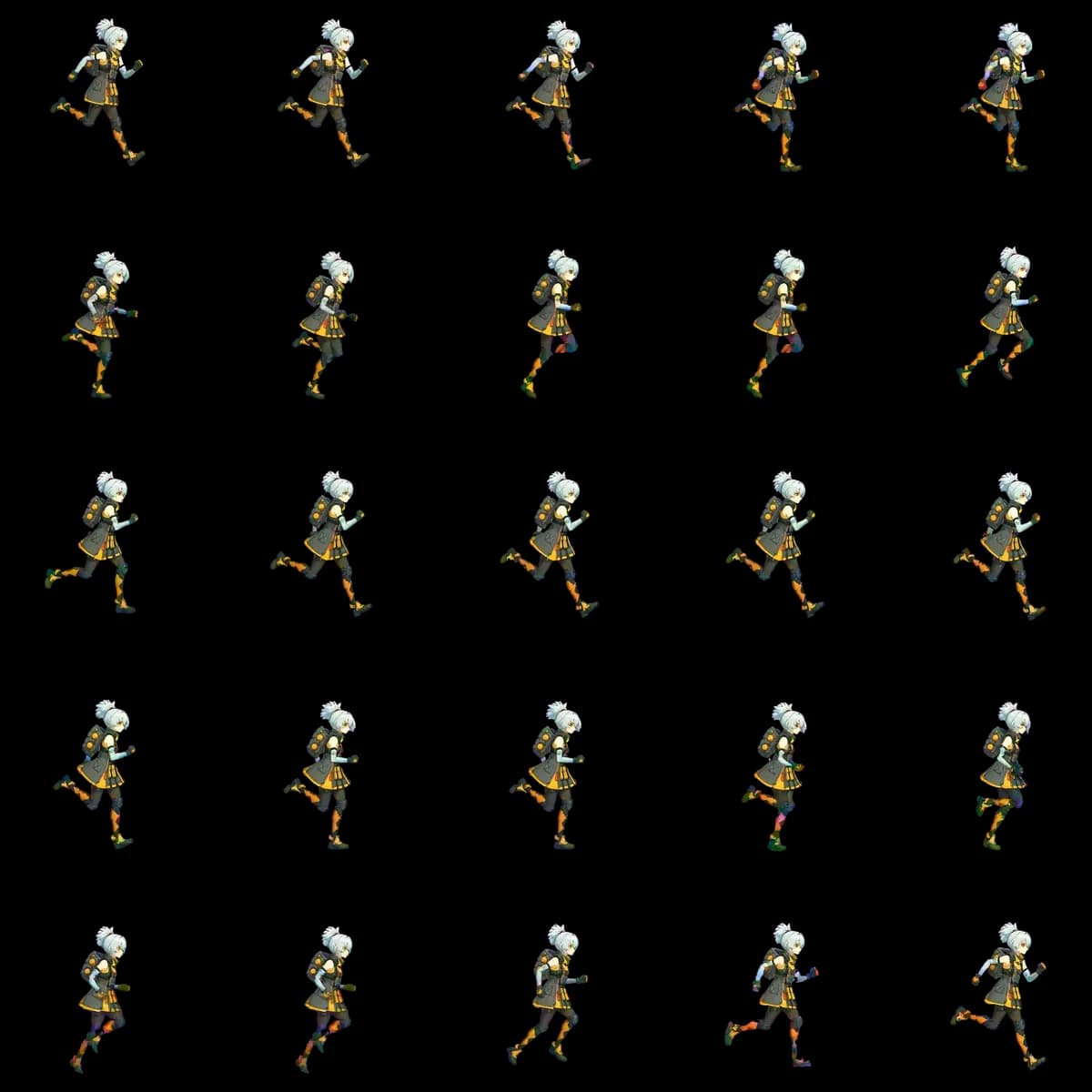
Original PNG: 4,800 × 4,800 px · 960 px cells
Luna case study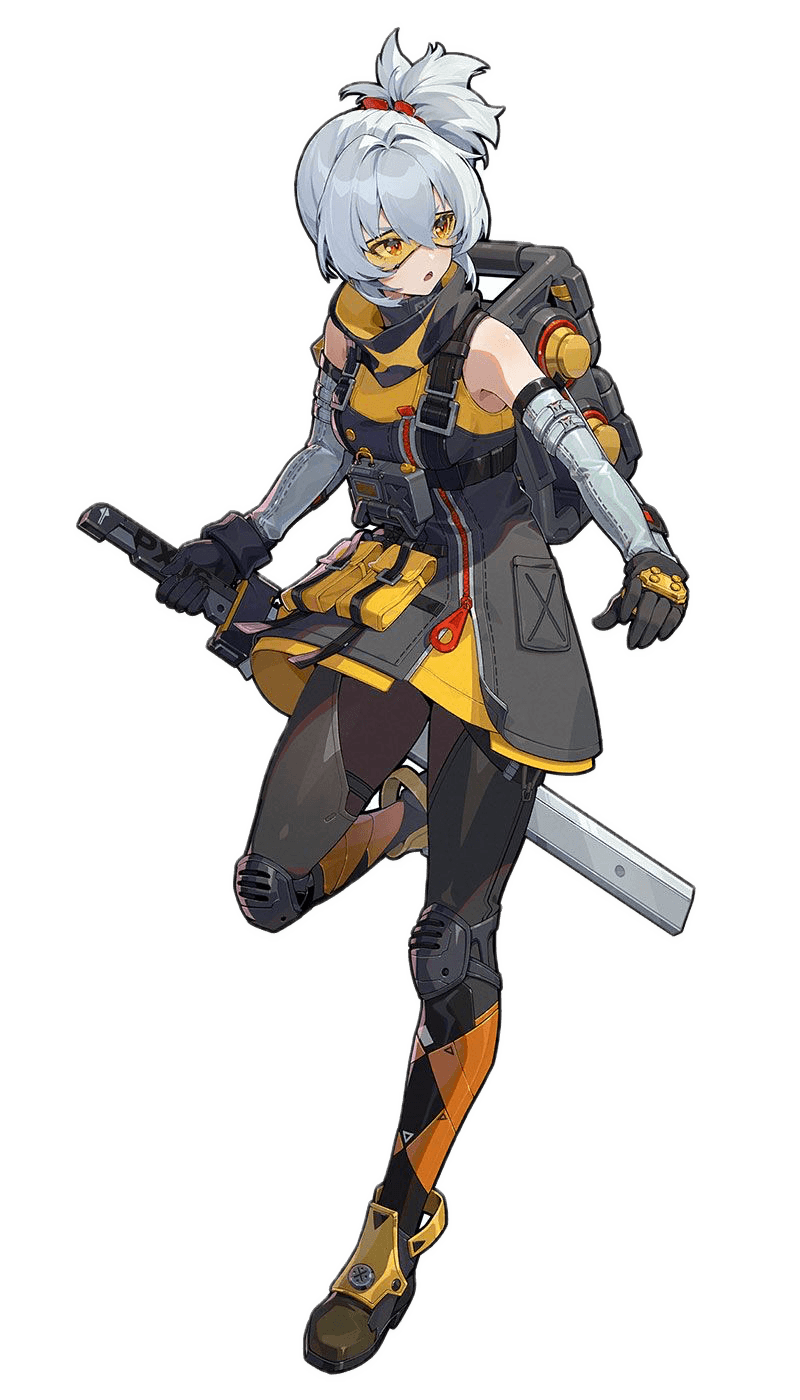
Upload a character image or describe one in Studio.
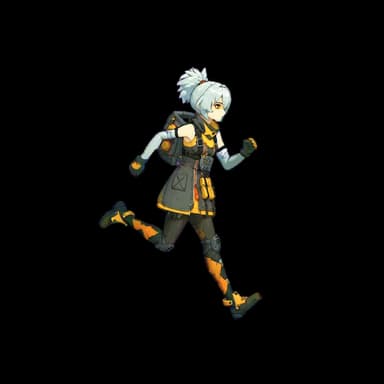
Choose Walk, Run or Attack and preview the result.
Set the frame count and size, then download your files.
| Setting | Studio output |
|---|---|
| Frames / grid | 4 / 2×2 · 16 / 4×4 · 25 / 5×5 · 49 / 7×7 · 64 / 8×8 |
| Frame size | Uniform square cells · MAX follows source size |
| Frame order | Left to right, then top to bottom |
| Background | Transparent PNG |
| Cell spacing | 0 px · Fixed square grids |
| Timing | Speed · Start frame · Trim |
Available frame counts and sizes depend on your Studio access.
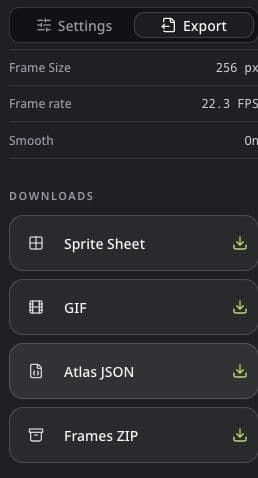
One transparent texture for grid-based animation.
An animated preview for reviewing and sharing motion.
Frame coordinates and timing in Spritix’s JSON format.
Separate numbered PNGs for editing or frame-by-frame import.
Set Sprite Mode to Multiple, then slice by cell size or count.
Read the guideAdd the sheet to SpriteFrames and select frames in grid order.
Read the guideUse Import Strip with the matching cell size and frame count.
Read the guideSet frameWidth and frameHeight, then configure the animation.
Read the guideStart with the motion your game needs, then choose a frame count. A short idle may need fewer distinct poses than a fast attack. In the sprite sheet maker, compare the available settings at the intended playback speed before choosing a larger sheet. More frames increase texture area at the same cell size, but do not guarantee better motion. Review the anticipation, contact and recovery poses separately so the exported sequence communicates the action clearly at the size players will actually see.
Check the character at its intended screen size before exporting a large texture. Frame Size describes the square canvas around each pose, so transparent space also occupies part of that cell. The sprite sheet maker keeps a uniform grid for slicing; it does not make every visible character the same height. Compare the head, feet and held equipment across frames. If small details disappear, assess the silhouette and animation first rather than assuming a higher output resolution will restore missing detail.
Play the ending and beginning together when reviewing a repeating action. Look for a sudden change in foot position, body height or equipment placement. Use Studio’s Trim, Start frame and Speed controls to review the sequence before downloading from the sprite sheet maker. Keep the same playback order in your engine. A run cycle usually repeats, while a jump or attack may play once; choose the behavior for the action instead of applying one loop setting to every animation.
After using the sprite sheet maker, import one action before preparing the rest of the character library. Match the cell dimensions, grid and frame order, then check the animation against your actual scene background. Test both bright and dark areas to inspect transparent edges. Keep the matching coordinate and timing file alongside the PNG when your pipeline needs those values. Once the test animation works, repeat the same import setup for the remaining actions and review each result independently.
A sprite sheet stores animation frames in one image. Your engine plays the selected frames in order at a chosen speed.
Yes. Describe a character in Studio, review it, then generate an action and export its frames.
No. This page starts Studio’s character-animation workflow; it does not combine existing PNG frames or convert GIFs.
Choose PNG for a texture grid, GIF for a preview, JSON for coordinates and timing, or ZIP for separate frames. Spritix JSON may need conversion for your engine; direction packs download as ZIP files.
Examples are free to explore. Studio generation uses credits, and production downloads follow your account’s access; opening Studio does not start a paid generation.
Compare the downloaded PNG with the animation preview, then play it in your target engine. Check the silhouette, equipment, frame order and timing; Spritix provides the assets, while your game controls how they play.