How to Create a Custom Sprite Action from a Prompt
Follow Cargo Bot from a one-line prompt to a sprite sheet. Generate and confirm the first and last frames in Spritix Studio, then play the finished result.
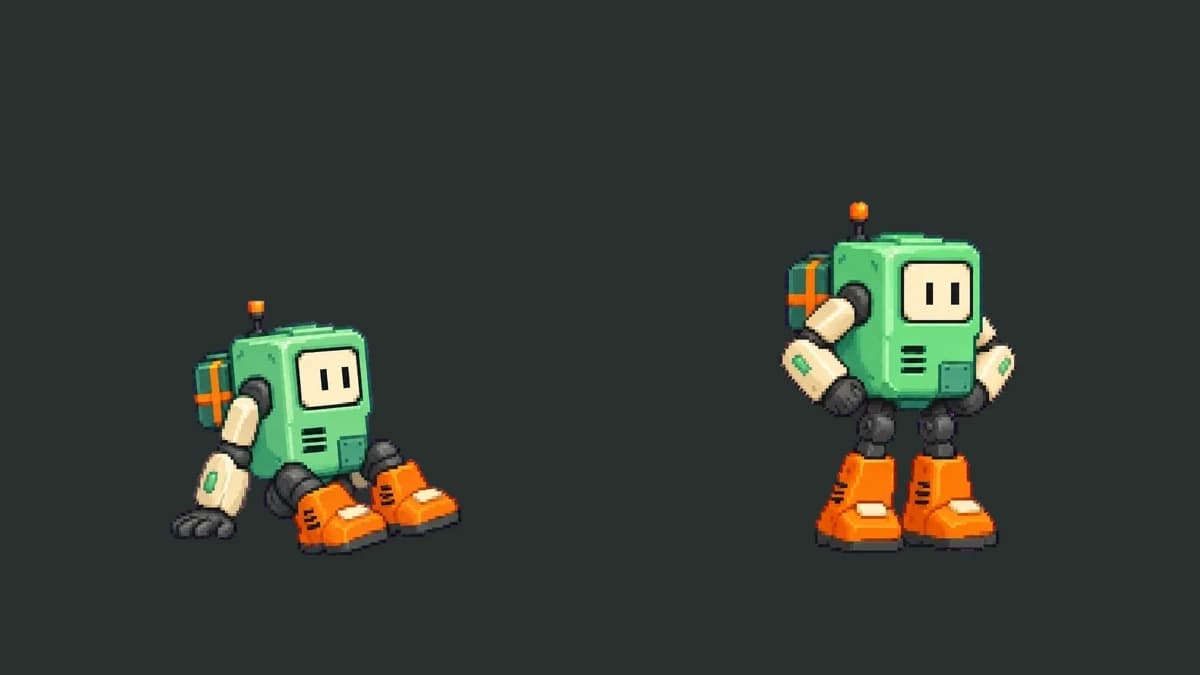
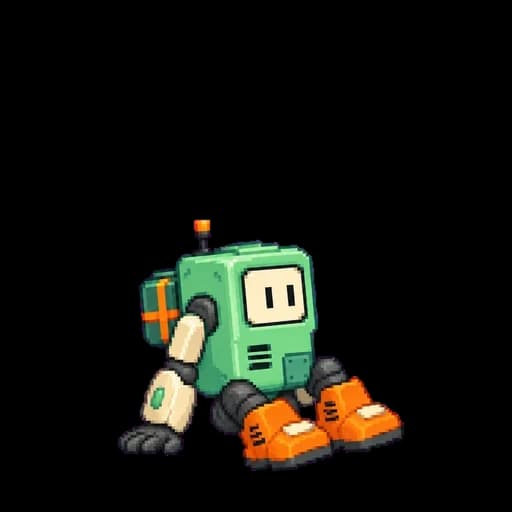
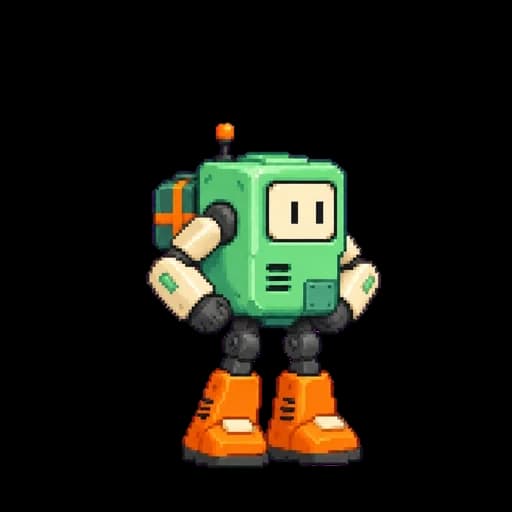
Cargo Bot starts on the floor with a hand planted beside it. Three seconds later it’s standing with both hands on its hips. The motion prompt is one sentence. In Studio, we also made two stills to show exactly where it should start and finish. The first and last frames shown with the animation are the inputs used for this result.
- First frame
- Last frame
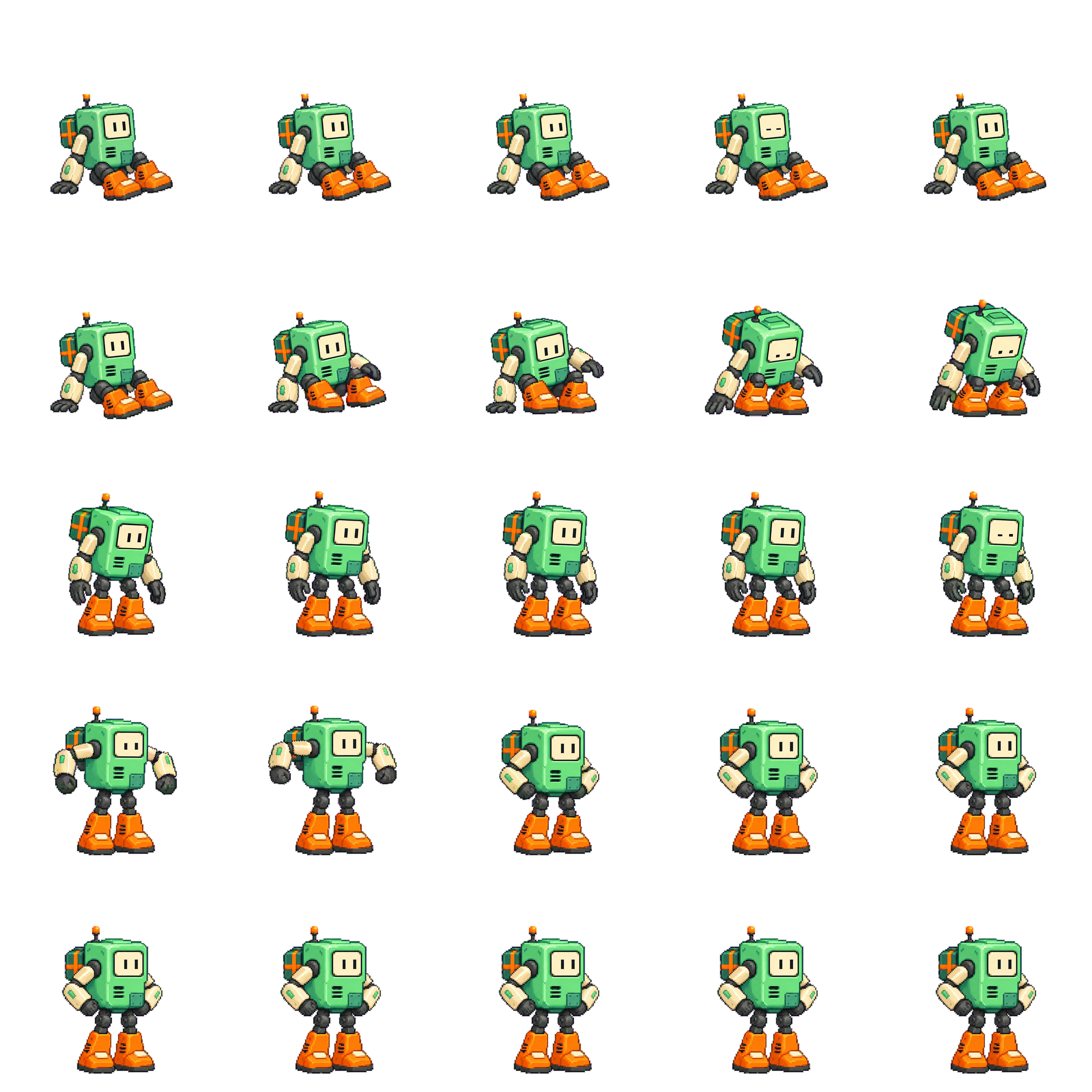
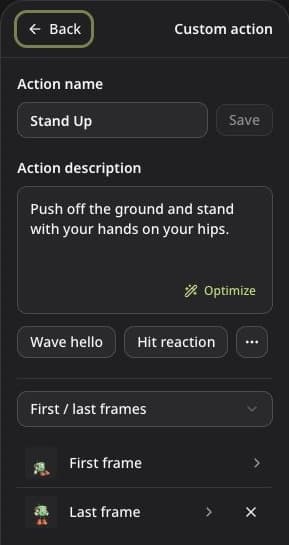
Push off the ground and stand with your hands on your hips.
Start with the action you want to see
Open a prepared character in Spritix Studio, choose Single direction, then open Custom and choose New action. Name it and describe what happens between the two poses. For Cargo Bot, that’s pushing off the floor, getting upright, and bringing both hands to its hips. You can copy the action prompt above and use it as a starting point.
Set Quality to Mid to use an ending pose alongside the starting pose. In Starting pose, select First / last frames. If your original character image already works as the opening pose, keep it. Low uses the starting frame only. Need a character first? The character animation walkthrough covers that part.
Make the opening and ending poses
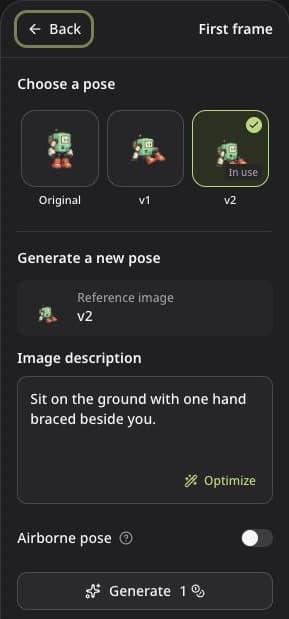
First frame. Open the First frame row and choose Original or a saved image as the reference. In Image description, describe the pose at the instant the animation starts. For the bot, we used “Sit on the ground with one hand braced beside you.” Click Generate, preview the new candidate in the gallery, then click Use this pose to apply it.
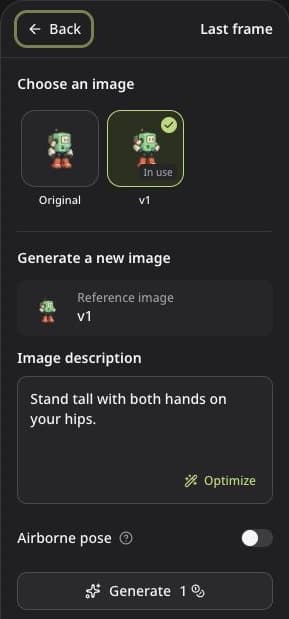
Last frame. Go back and open Last frame. Pick a reference and describe the position the bot should settle into: “Stand tall with both hands on your hips.” Click Generate, pick the candidate that keeps both hands where you want them, and click Use this image. The In use marker tells you which picture is applied to that slot.
Each new image costs 1 credit to generate. You can preview the candidates and confirm one before you spend credits on the animation.
Connect the poses, then check the movement
Back in the action editor, we used Once, 3 seconds, and Mid. Once fits this move because the bot ends in a standing pose. Choose Loop for a repeating action, then check the seam in the result. You can set the duration from 2 to 12 seconds. The 3-second Mid animation costs 30 credits. Low costs 3 credits per second, and Mid costs 10 credits per second. Check the total on Generate before you click.
Play the result and watch the hand that pushes off. Then check if both hands settle at the hips once the bot is upright. If the pose is wrong, update the corresponding still. If the timing inside the movement is off, adjust the action description. If you only have extra frames at the start or end, use Trim.
When the preview looks right, open Settings & Export, apply your frame settings, and open Export. For an engine workflow, start with Sprite Sheet PNG and add Atlas JSON if you need frame coordinates and timing. The export formats guide covers GIFs and individual PNG frames too.
Three more ways to shape an action
Ironwatch Guard raises a shield
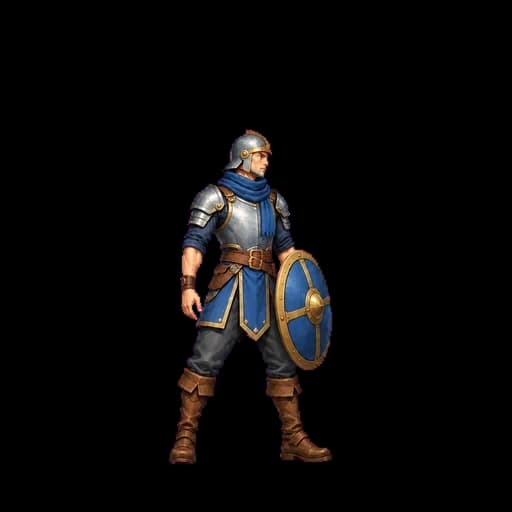
“Chest height” gives the shield a specific place to stop. We also used two frames on this run, from the shield held low to the crouch that closes the move.
- First frame
- Last frame
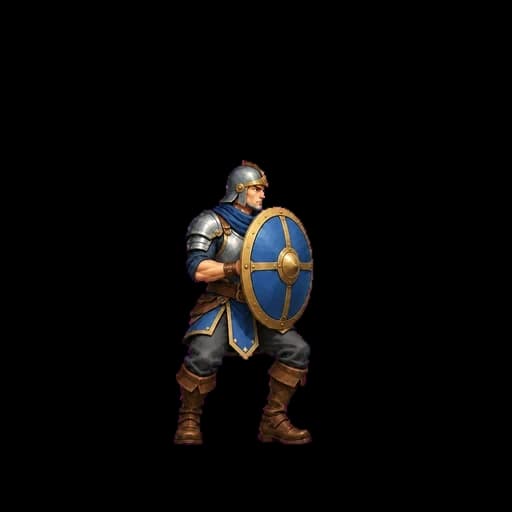
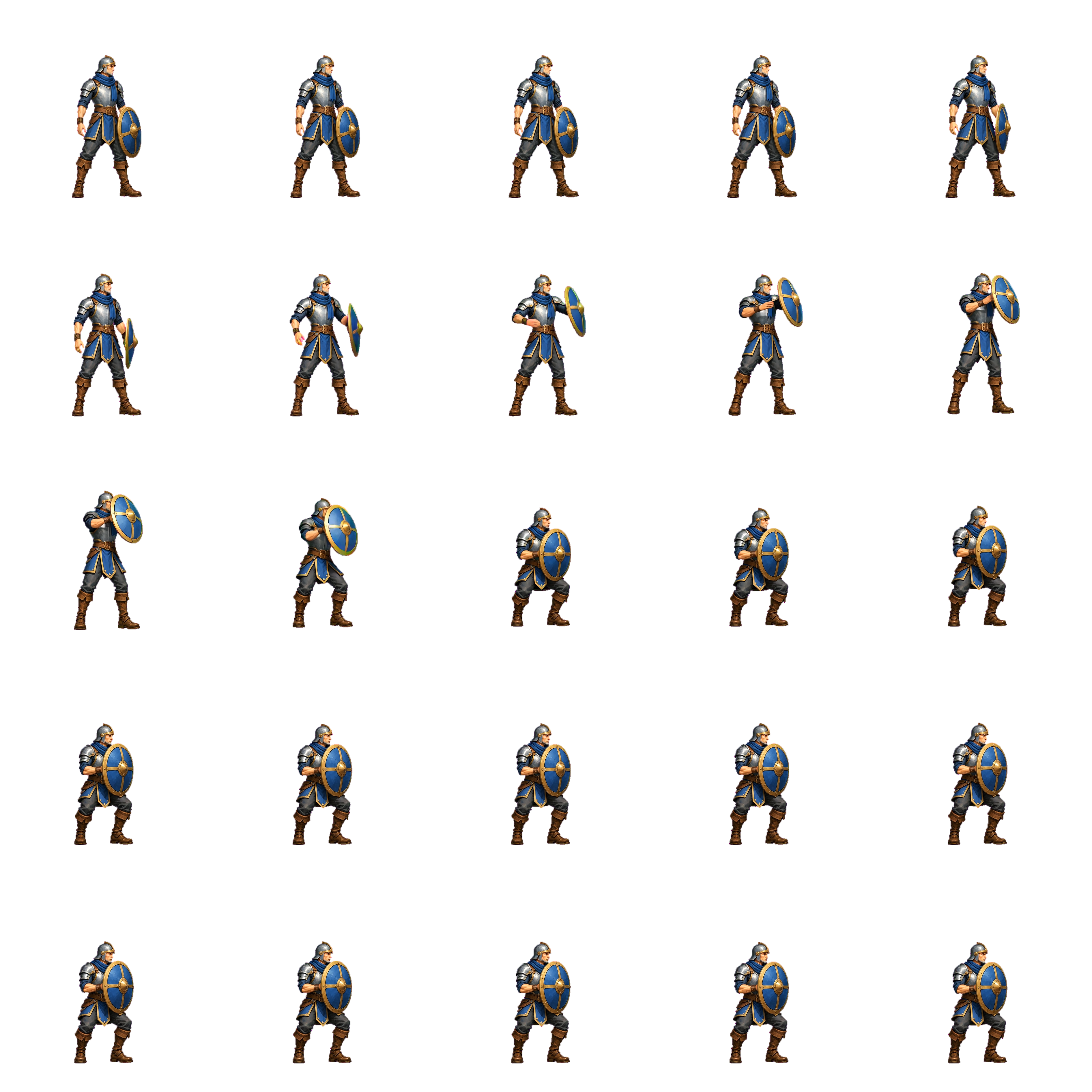
Raise your shield to chest height and hold a crouch.
Trail Scout takes one step
“One small step to the right” controls how far the character travels. For this result we used the starting frame and let the description carry the rest of the motion. The preview plays at the pace of the edited Studio export.
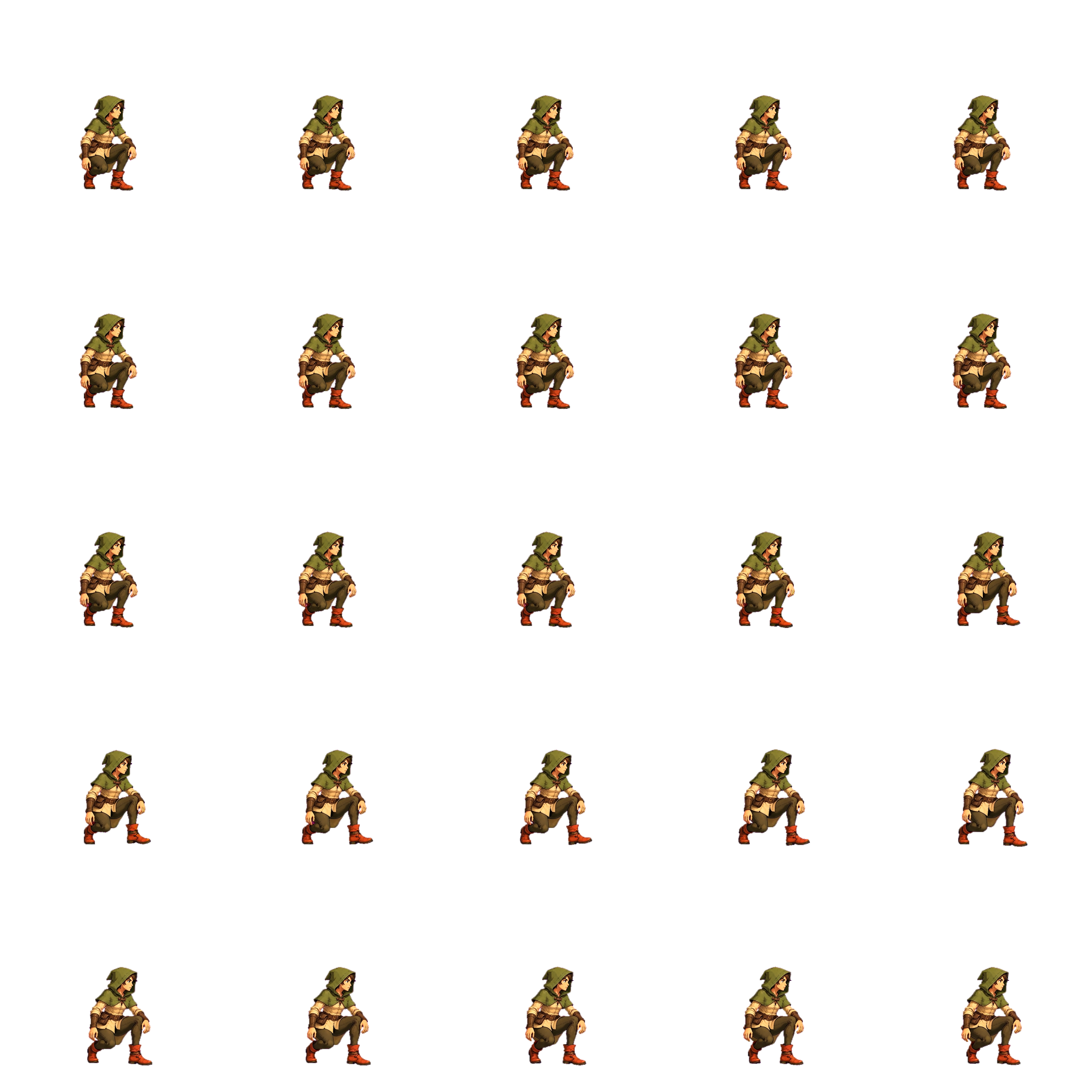
Stay crouched and take one small step to the right.
Pip’s little hops become a loop
The useful part of Pip’s generation was a 1.08-second section. We found a repeatable interval with Perfect Loop. Check the landing and the first crouch together when you try this on your own clip. The loop editing guide shows how to trim and check the join.
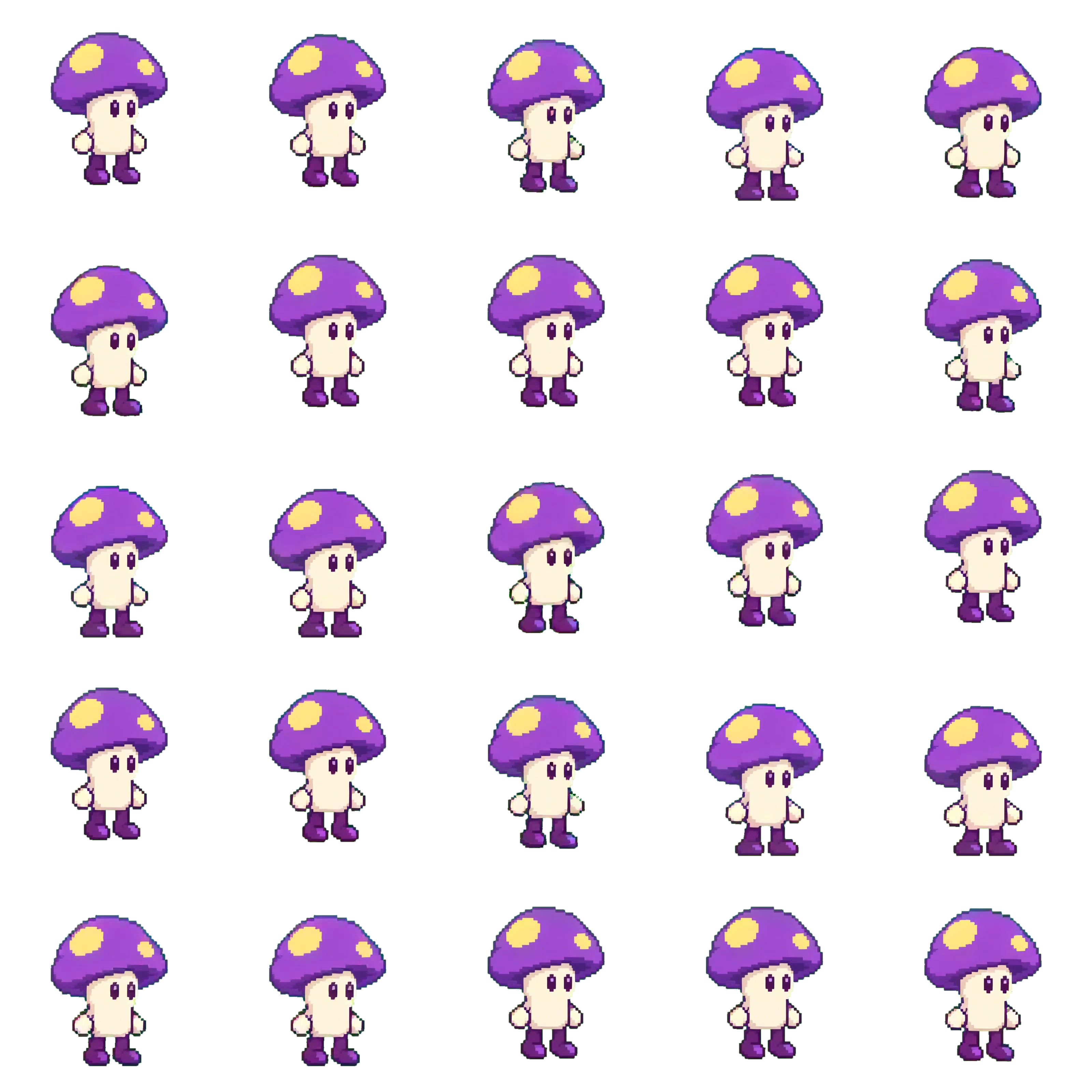
Pip does a short rhythmic series of little hops in place. On each beat his knees bend, his mushroom cap squashes slightly, both boots briefly lift together, and he lands back in the same spot. Keep the hops small and vertical. Preserve his face, two yellow spots, plum boots, and crisp pixel-art palette. Finish in the exact grounded opening pose so the sequence can repeat.
Weitere Beiträge
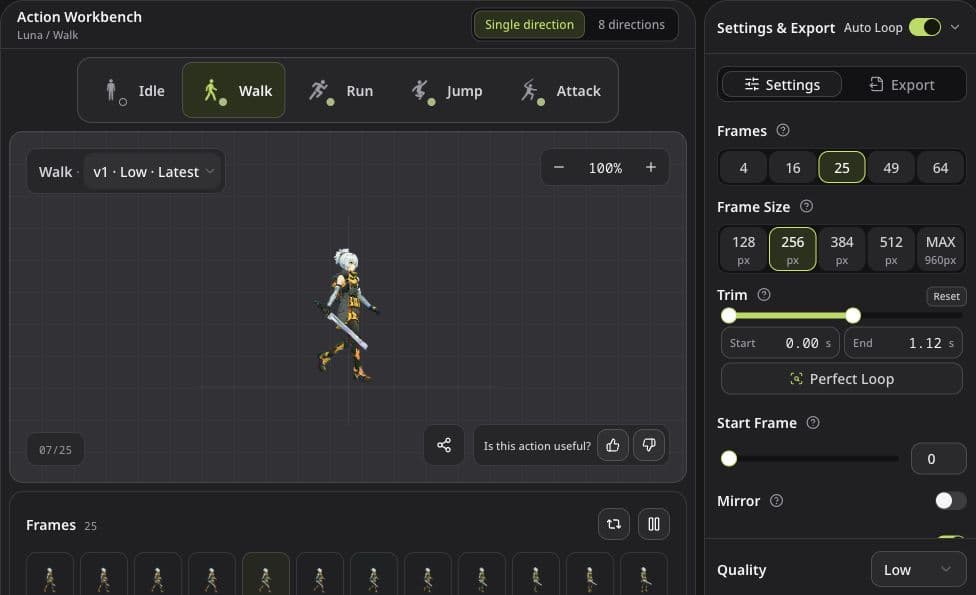
Animationsschleifen in Spritix nachbearbeiten
Entscheide, wann du zuschneidest, das Tempo änderst, Perfect Loop einsetzt oder eine neue Version erzeugst.

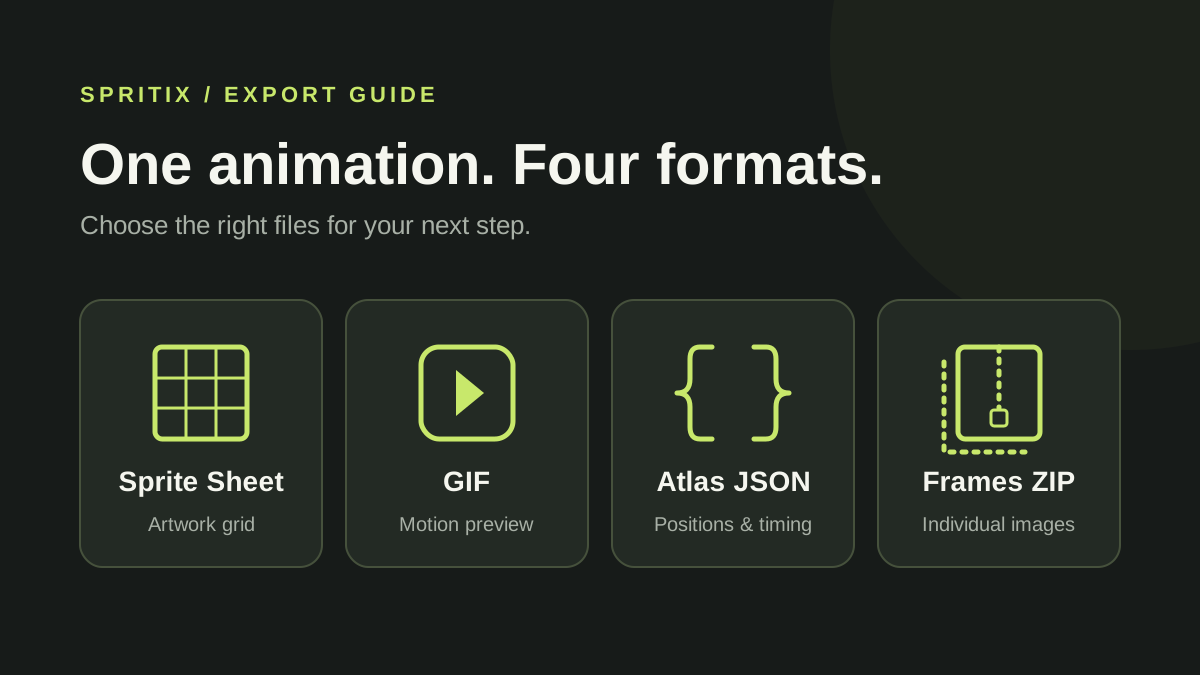
Spritix-Exportformate: Sprite Sheet, GIF, Atlas JSON und PNG-Einzelbilder
Wähle passende Dateien für dein Spiel und übernimm Reihenfolge, Abmessungen und Wiedergabezeit der Animation.
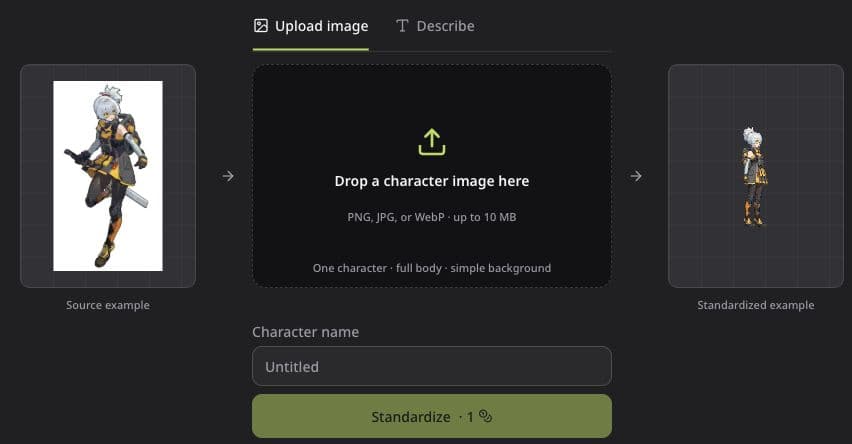
Charakteranimationen in Spritix erstellen und exportieren
Bereite einen Charakter aus einem Bild oder einer Beschreibung vor, erstelle vorgefertigte oder eigene Aktionen und exportiere sie für dein Spiel.